
Synchronizing Your TTLock Account with Rental Ninja
This guide explains how to connect your TTLock account to Rental Ninja so you can manage your smart locks directly from your Rental Ninja account.
Prerequisites
Before you begin, ensure you have:
A TTLock account containing the devices you wish to connect to Rental Ninja.
All devices already added and configured from the TTLock side, using the TTLock mobile app. Device setup, naming, and configuration are all handled within the TTLock app.
Each device must have internet connection, either through a TTLock Gateway or by being a Wi-Fi Smart Lock. Devices that rely only on Bluetooth cannot be managed remotely.
An active Rental Ninja account.
Connect Your TTLock Account
Connecting TTLock to Rental Ninja is very simple and only takes a few seconds.
Navigate to Settings: Log in to your Rental Ninja account and go to the
Settingssection.Access Home Automation: Within
Settings, navigate toHome Automation, then select theAccountssection.Add Account: Click on the
Add accountbutton.Select TTLock: Choose
TTLOCKfrom the list of available providers.Enter Your Details:
Email: Your TTLock account email.
Password: Your TTLock account password.
Account name: The name you want this account to have in Rental Ninja when shown in the list of connected accounts.
Connect: Click
Connectto finalize the integration.
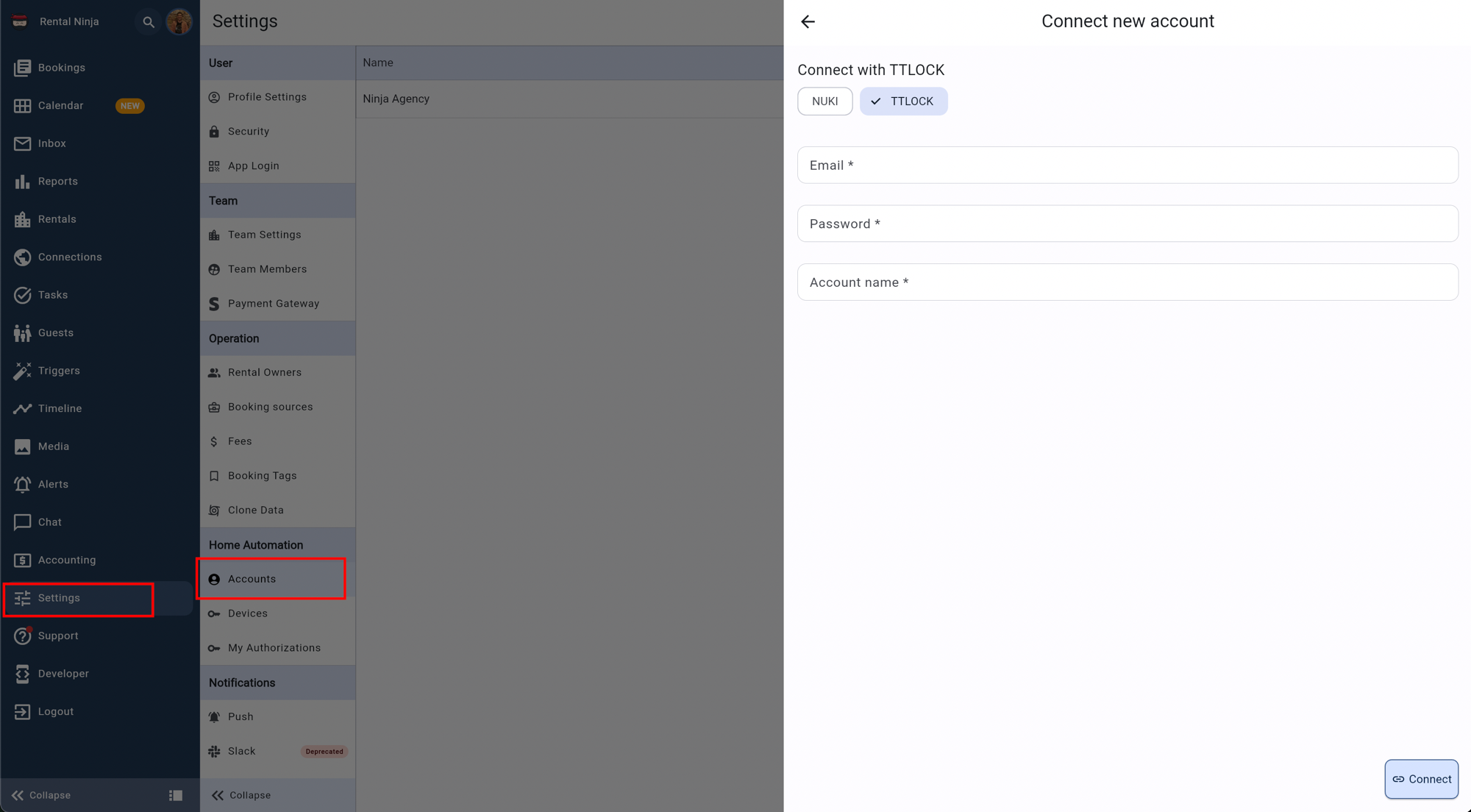
Once connected, all devices from your TTLock account will be synchronized and become available in Rental Ninja.
Verify Synchronization and Manage Accounts
After a successful connection, your TTLock devices will appear in Rental Ninja.
View Connected Account: To review your connected TTLock account, navigate to
Settings>Home Automation>Accounts. You will see the account listed with the name you provided, the number of devices synchronized, and the connection date.Multiple Accounts: You can connect multiple TTLock accounts to Rental Ninja if needed. Simply repeat the steps above for each additional account.
Device Naming: Device names displayed in Rental Ninja match the names configured for them in the TTLock app.
Disconnecting Accounts: To remove a TTLock account and its associated devices from Rental Ninja, locate the account in the
Accountssection and use the disconnect/remove option.
Common Issues and Troubleshooting
Issue | Possible Cause | Resolution |
|---|---|---|
TTLock devices not appearing in Rental Ninja | 1. The device is not present in your TTLock account. | 1. Open the TTLock app and confirm the device is visible in your account. |
A device appears but cannot be controlled remotely | The device has no internet connection. | Ensure the device is either a Wi-Fi Smart Lock or is paired with a TTLock Gateway that is online. |
Connection failed / error message | 1. Incorrect credentials. | 1. Verify your TTLock account credentials. |