
Ses Hospedajes Configuration
In this article we will explain how to configure the connection with Ses Hospedajes for automatic communication sending.
But first, what communications are sent automatically?
Rental Ninja automatically sends the following communications to the authority:
1. New Booking Communication
It is sent 2 hours after a booking is received, as long as it has "Confirmed" status. Only bookings with future check-out will be sent. Any modification to the booking or client will be notified as long as it has been made up to a maximum of 10 days after check-out. The communication includes the basic booking and client data.
2. Guest Communication (Parte de viajeros)
Thanks to our PreCheck-in Form, which you must activate before configuring Ses Hospedajes, you will automatically collect guest information. The "Spain" mode of the form ensures you collect the information required by Ses Hospedajes. Additionally, with "Doc Scan" you make life easy for them as their document will be scanned and the form will be filled automatically. Furthermore, you can use identity verification to ensure that it's the guests themselves who fill out the form.
Once the form is completed, the communication is sent for confirmed bookings only on the check-in day (if the pre-check-in form is completed) or up to 10 days after check-out when the form is completed. Remember that you must ensure the guest fills out the form or fill it out and complete it yourself. Any modification to the form will be sent as long as the modification occurs up to 10 days after check-out.
3. Modifications and Cancellations
If you cancel or modify a booking or guest communication already sent, the system automatically sends the update to Ses Hospedajes.
How to Configure Ses Hospedajes
To start, go to Ses Hospedajes. You must access the "Acceso al registro de establecimientos y entidades" section, which allows you to manage your account and your property information, not the one that allows you to manage communications. Register and make sure to check the "Envío de comunicaciones por servicio web" checkbox. If you are already registered, you must modify your registered data to ensure you check the "Envío de comunicaciones por servicio web" checkbox:
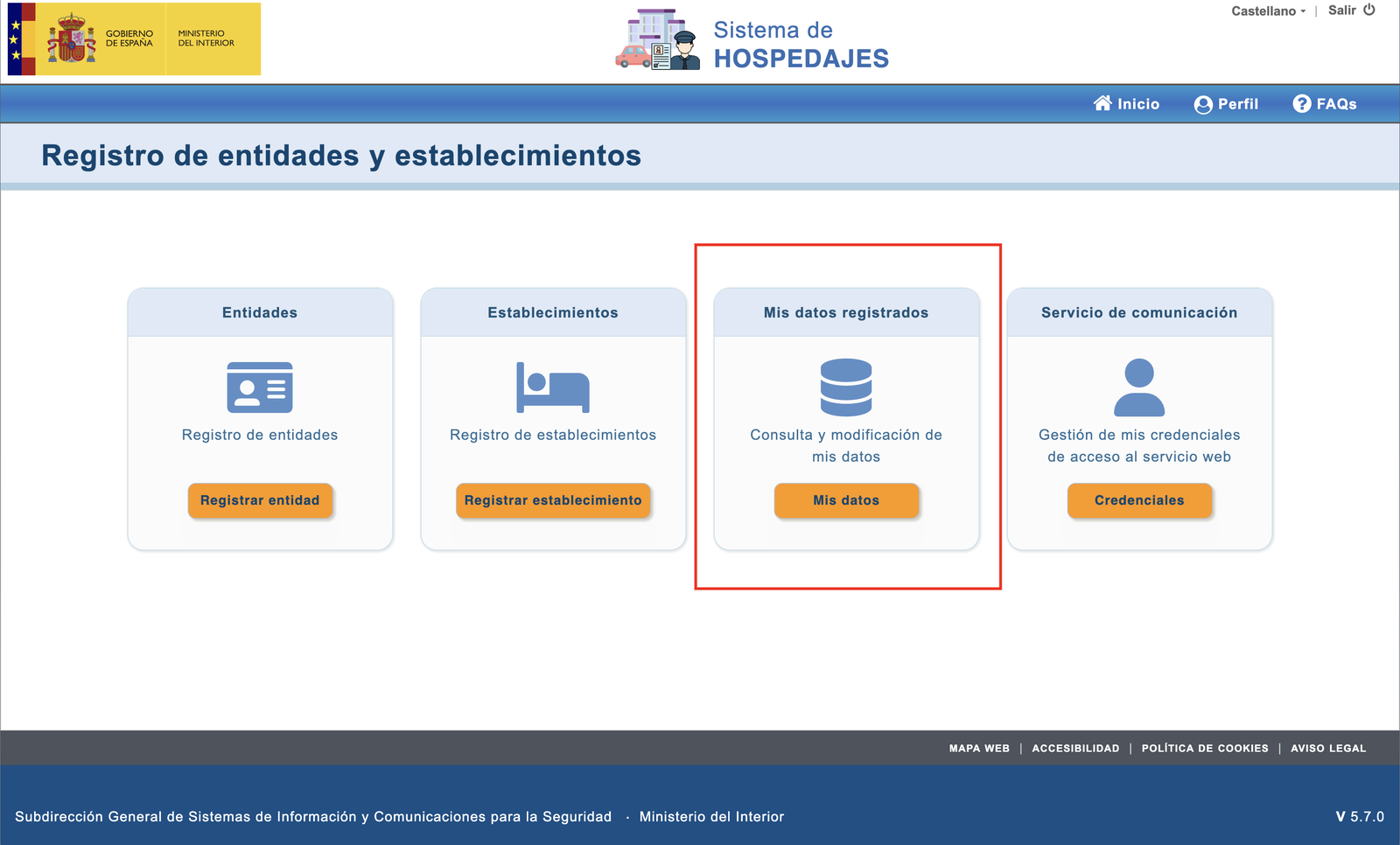
If you are already registered and want to find the checkbox, go to the "Mis datos registrados" section

Check the "Envío de comunicaciones por servicio web" checkbox
This checkbox will allow us to send communications to Ses Hospedajes. If you don't check it, submissions will fail. On the other hand, the email you enter will be where they will send you the communications sent and failures, but you will actually see all this directly in Rental Ninja.
Now go to Rental Ninja. The configuration is per property. In each one, in the guest module configuration section, you will find the "Registration Authorities" tab:
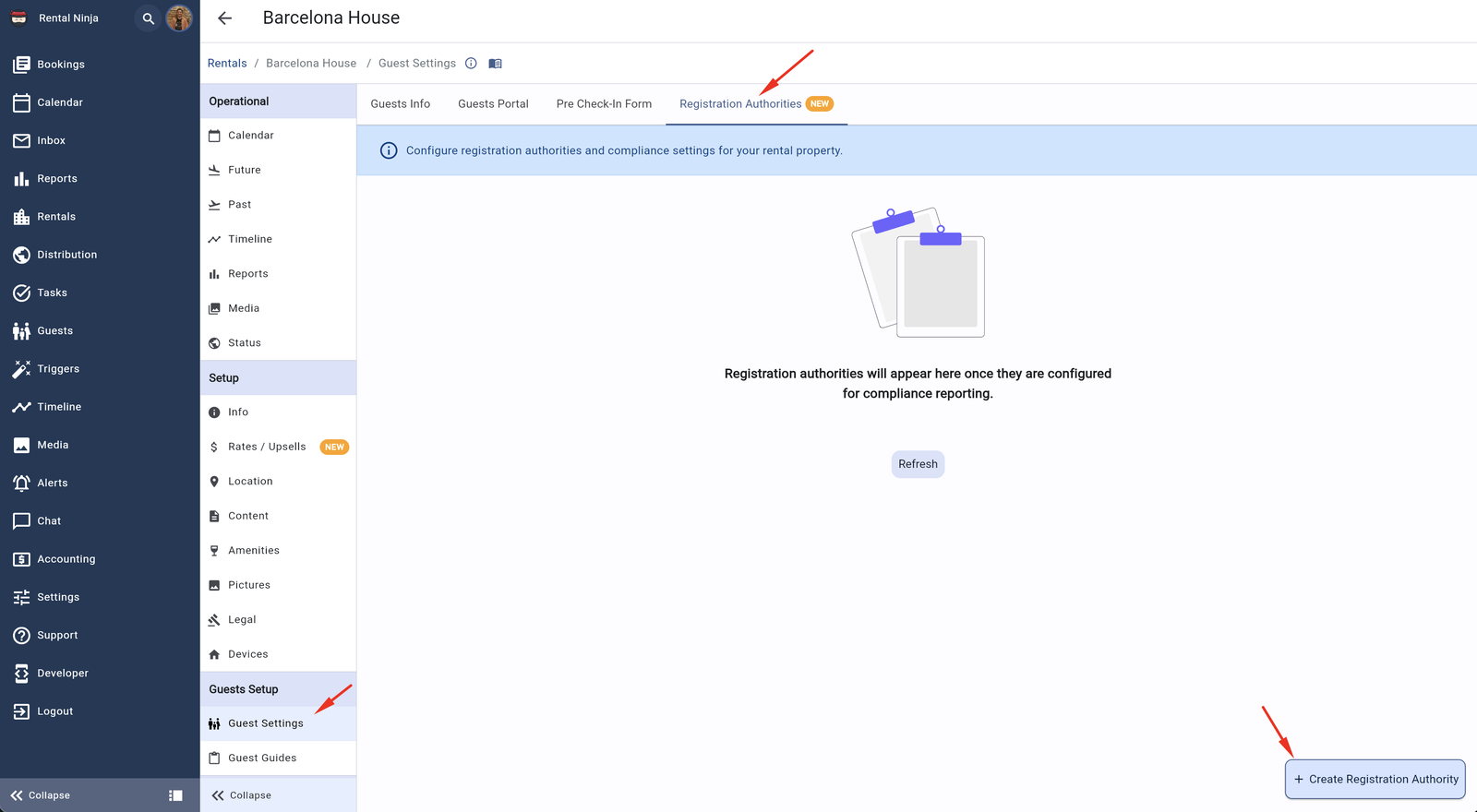
Register Ses Hospedajes in the "Registration Authorities" section of each property
It will only let you add Ses Hospedajes if the property location is in Spain. You must add the following 4 fields in the form:
1- "Servicio web" Username and Password
When you have checked the "Web service communication sending" box in Ses Hospedajes, you will receive an email with the credentials (username and password) for the web service. ATTENTION! These are not the credentials for your Ses Hospedajes access, but the "servicio web" ones! If you can't find them, you can go to Ses Hospedajes, in the "Servicio de comunicación" section:
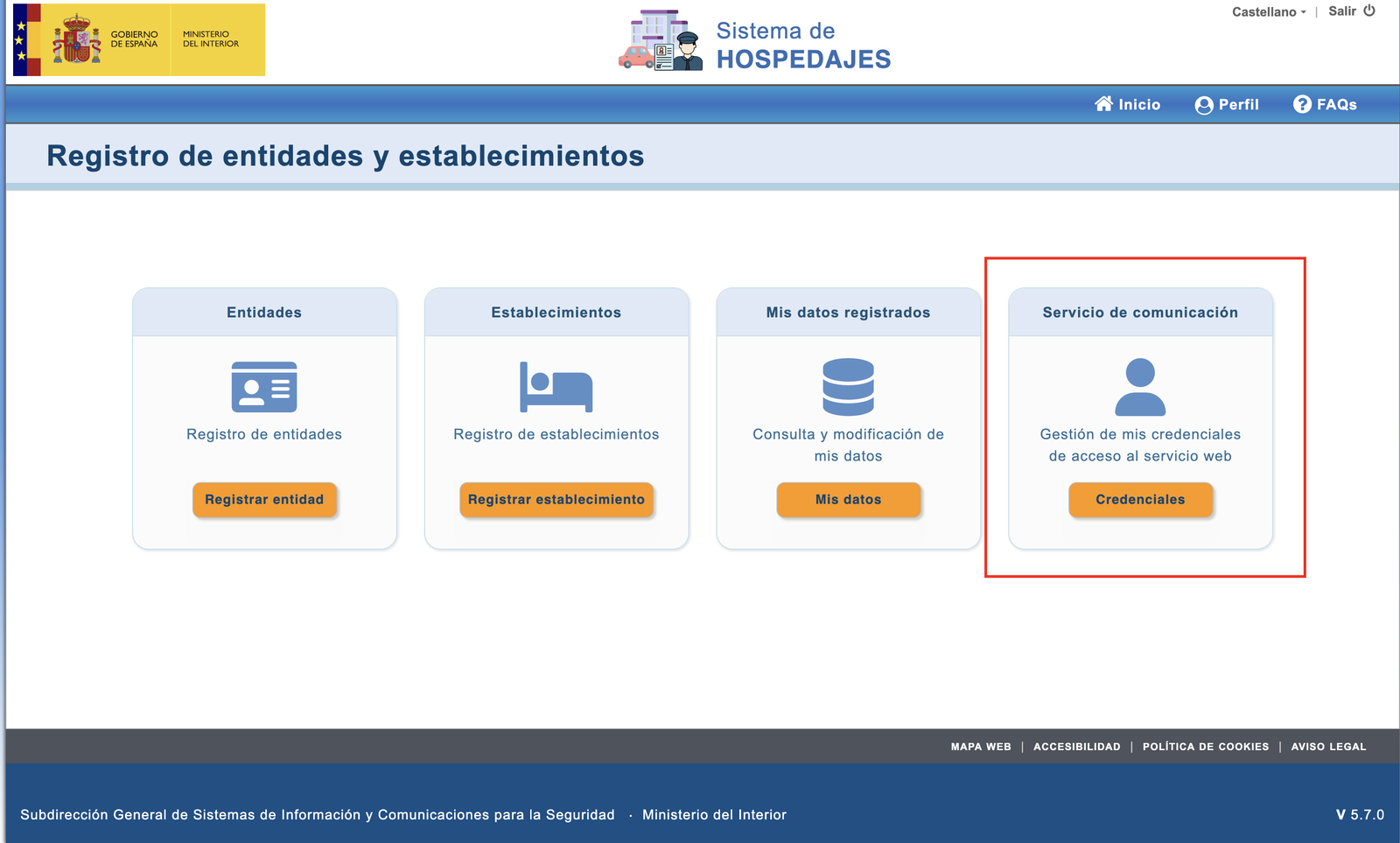
Go to "Servicio de comunicación" if you need to recover the web service credentials
There you can recover the credentials you must enter in Rental Ninja. You may have an account with multiple properties. You must enter the same credentials for multiple properties in that case. On the other hand, remember that if you change the account password, you must also modify it in Rental Ninja so that communication sending doesn't fail. If a communication has failed for this reason, the system will not automatically retry it. You will find a "Retry" button in the Rental Ninja communication view.
2- "Código de Arrendador" y "Código Establecimiento"
When you register a property in Ses Hospedajes, you will receive an email with both codes. If you can't find it, go to the "Mis datos registrados" section of Ses Hospedajes to retrieve them.
Important: Once the connection is configured, the system handles everything: it sends mandatory communications, alerts you if something fails, and automatically retries when you correct errors. Therefore, you don't need to do anything else.
And now what?
Once the connection is configured, the system will work completely automatically. However, if you want to know more details about how to:
Check the history of sent communications
Identify and manage errors in communications
See automatic alerts when something fails
Know the necessary permissions to manage authorities
Check the Registration Authorities article where you will find all the information about daily operations with authority communications.