
Registration Authorities
Rental Ninja is connected with various authorities such as Ses Hospedajes or Mossos d'Esquadra. Each connection works in a particular way, depending on how each authority operates. But in general, Rental Ninja works automatically: everything is sent automatically. Once the connection is configured, it starts working on its own and only alerts you if there's a problem that requires your attention. Even so, if you want to check the communications sent, you can do so as well.
To configure each authority, go to the help center article about the authority in question. There you will also have details on how the connection works in particular. In this article, however, you will have information on how to view the communications sent, and how to manage errors that occur in communications that require your attention.
How to Verify Sent Communications
Although you don't need to monitor manually (the system alerts you of problems), you can review the communication history at any time:
In a Booking's Timeline
Open the booking you want to review
Go to the "Info" tab and click "Timeline"
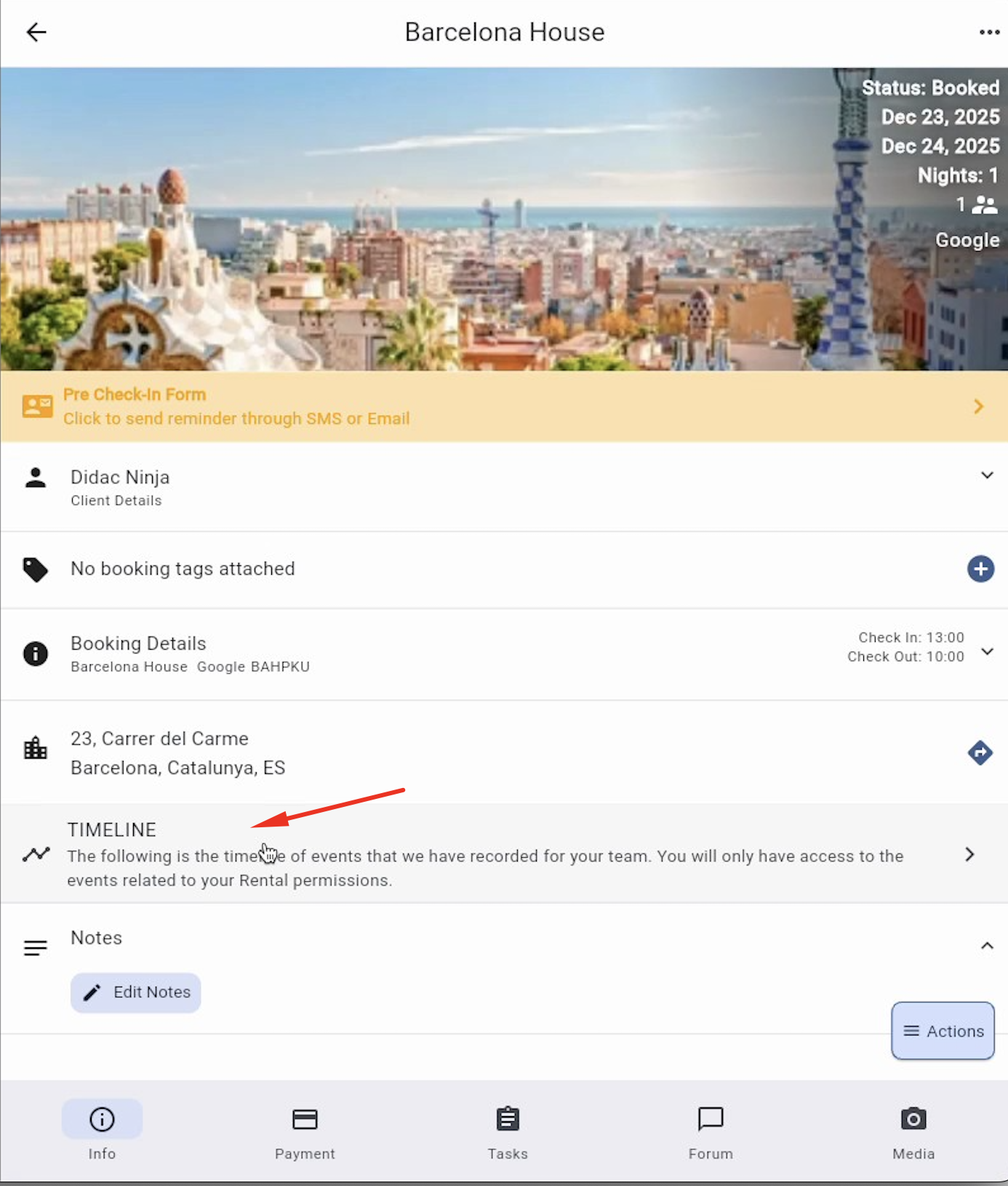
Timeline: will show everything that has happened with this booking
You will see the complete record of everything that happened with the booking. You can see all the communications sent for that booking there
In the "Guests" Section
Access the "Guests" section from the main menu and then go to the "Authority Communications" section to see a complete list of all communications sent, with clear indication of which were successful and which failed. You can use the filters to see only failed ones, from a specific property, by dates, etc.
How Do You Know if There's a Problem?
You don't need to check anything manually. Rental Ninja alerts you automatically if a communication fails.
Automatic Alert System
When a booking is missing a communication, or when a communication cannot be sent correctly, the system:
Generates an automatic alert that you will see in the booking list. Additionally, you will receive a notification on your mobile if you have notifications for alerts activated.
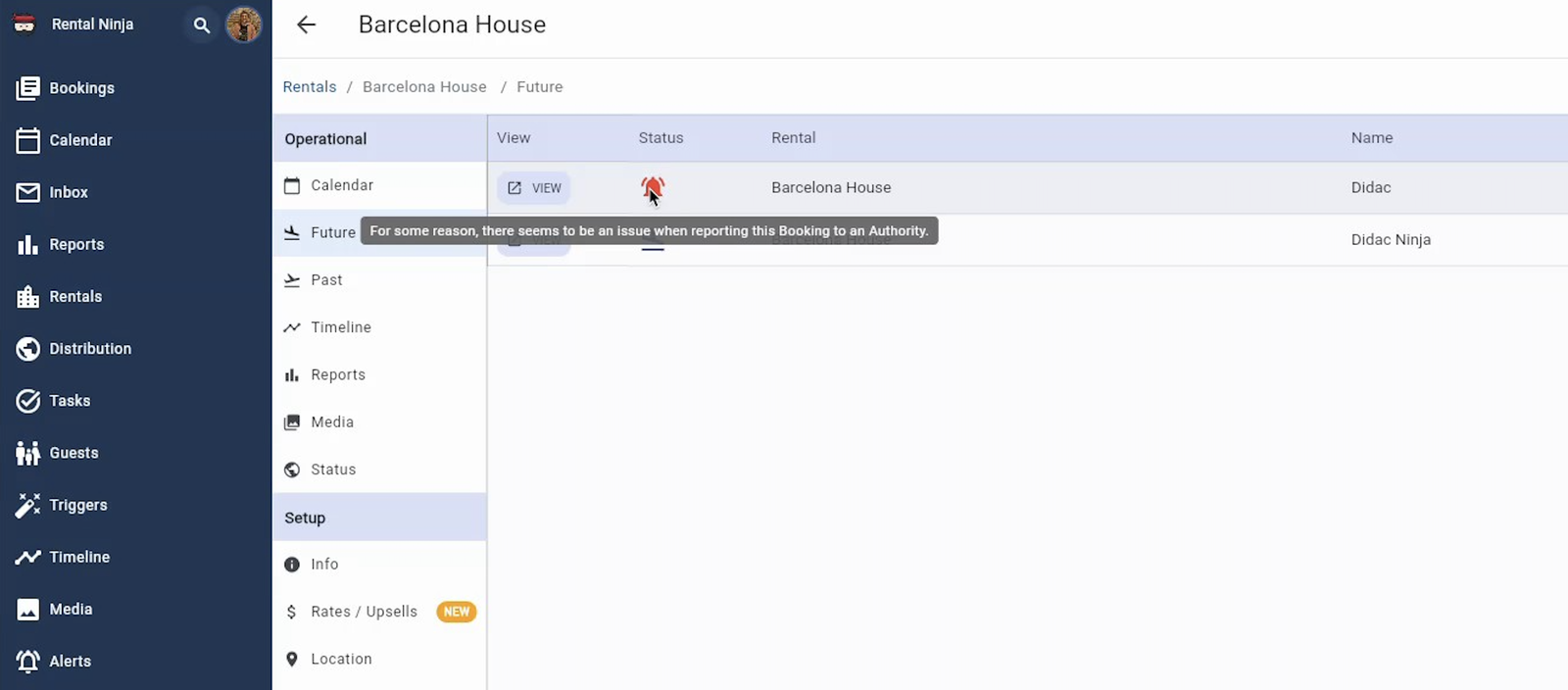
Alert icon (bell) visible in any booking list. It indicates there's an alert due to a communication problem.
Shows an alert visible in the booking view
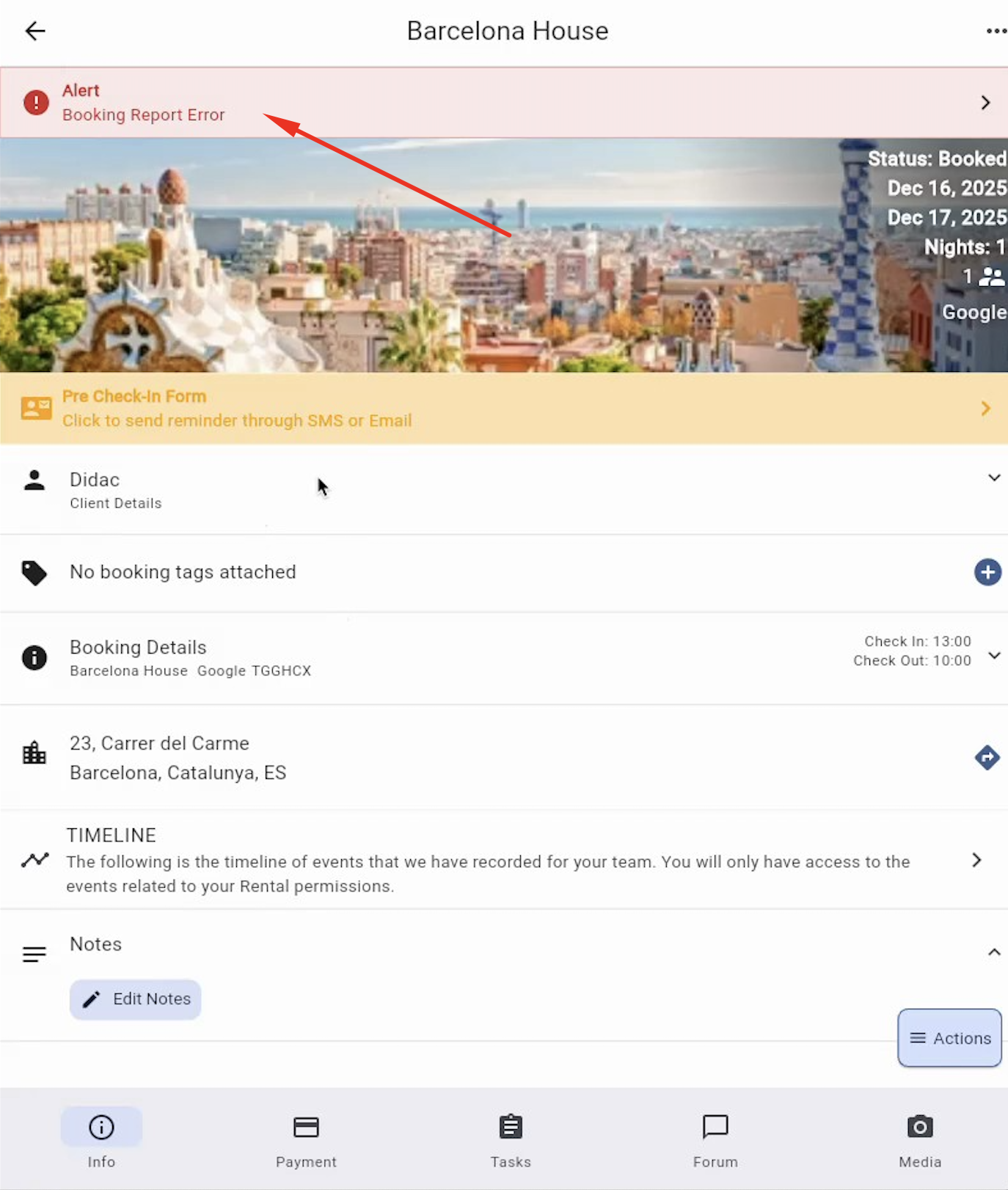
When you visit a booking, you will clearly see in red that there's an alert
Visit the alert. It includes the specific error message so you know exactly what's missing or wrong
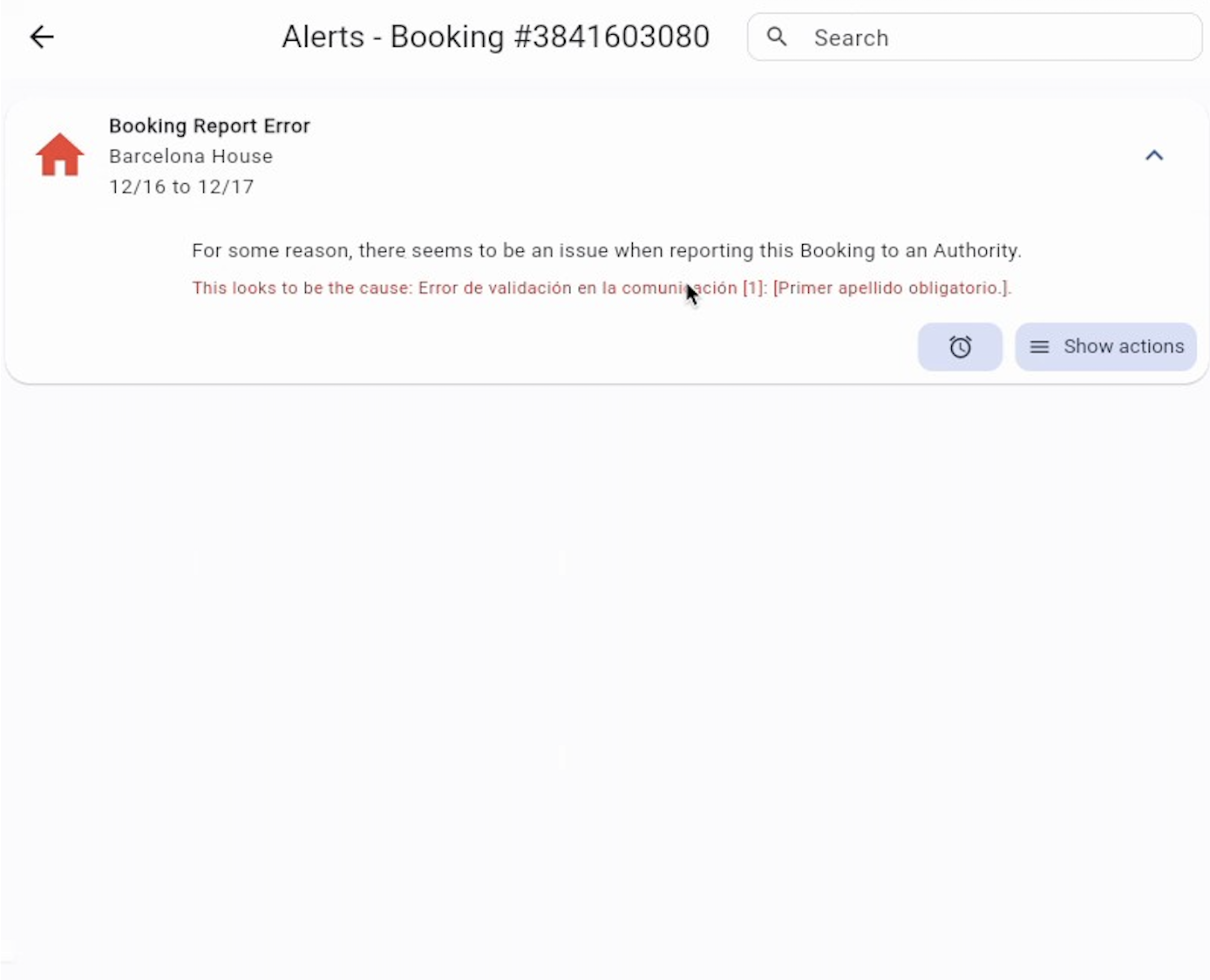
Error message detailing what information is missing
Where to See Alerts / Errors in Communications
In the booking itself: the red alert in the booking
In the "Alerts" section of the main menu: use filters to filter by alert type "Error in Booking Report" and "Error in Check-In Report".
In the "Guests" section of the main menu: Go to "Authority Communications". You will see the complete list of all communications sent (successful and failed)
In the communication view: you can access the communication view from the booking's Timeline or from the alert (clicking on "Actions" you will see the "View communication" button)
What to Do When a Communication Fails?
The process is straightforward:
Step 1: Identify the Error
Use the alert system or visit the communication to see the error message, as indicated above.
Example of a common error: "Last name is required" (guest's last name is missing)
Step 2: Correct the Information
Based on the error message, edit the booking and add or correct the missing information.
Step 3: Automatic - System Retries
You don't need to do anything else. As soon as you save the changes, Rental Ninja detects that you have corrected the information and automatically retries sending the communication to the authority.
The alert will automatically disappear when the communication completes successfully.
Users: Required Permissions
To configure and manage communications with authorities, your user must have the corresponding permissions:
Configuration permission: To connect new authorities in properties, you must have the Guest Module Configuration permission
Management permission: To view and manage sent communications, you must have the general Guest Module permission.
If you don't see the "Registration Authorities" option in the property configuration, contact your team administrator to grant you the necessary permissions.