
Recurring Jobs For Property Managers
Efficiently automatically manage and schedule recurring tasks separate from your booking activities or Rentals for your Short Term Business
## Recurring jobs are tasks performed regularly on a set schedule, ensuring consistent and efficient execution
Frequently occurring Jobs that happen every "X" period and are NOT related to any Booking.
These Jobs can be related to a Rental or not.
Examples:
Office cleanings
Administrative handlings, such as your Accounting checks
Deep cleanings, garden/swimming pool cleaning that need to be done when there are Bookings or not
Weekly linen/towel delivery by outsourced company
Monthly/Quarterly handlings/checks
#### Learn to organize non-booking related daily activities in your short-term rental.
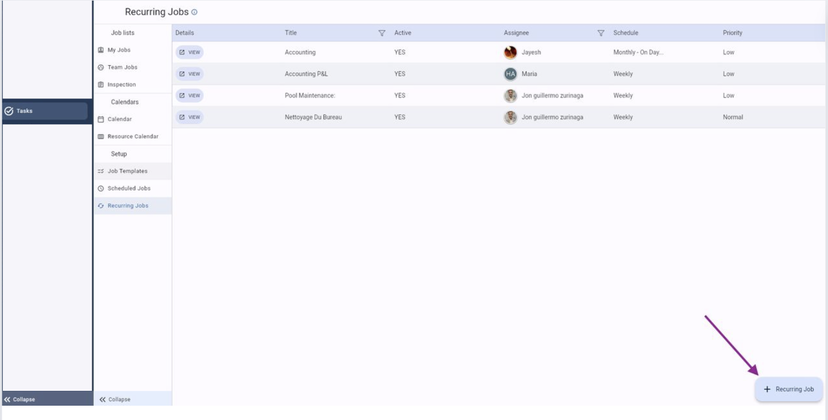
Go to the Task Module > Recurring Jobs
Click on "+ Recurring Job"
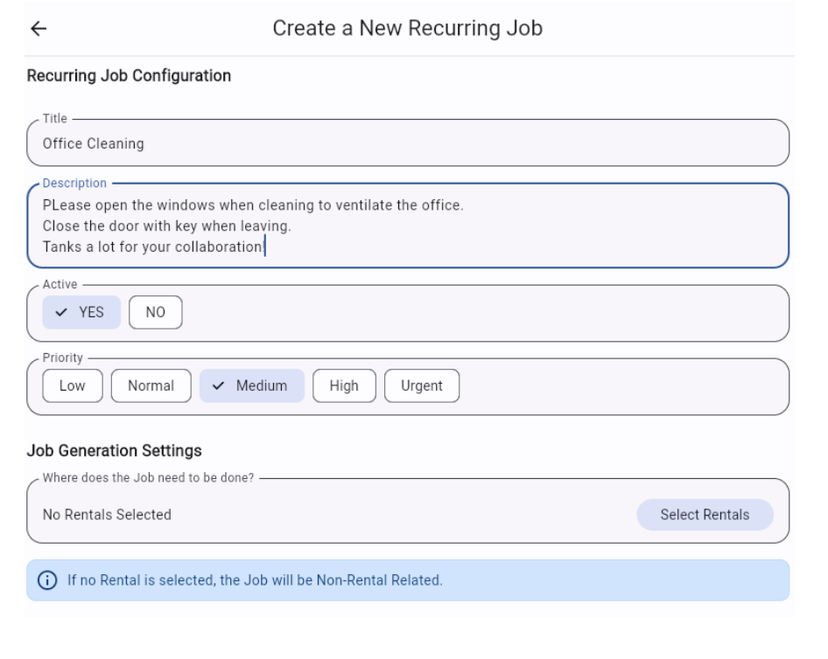
Set the title + description of the Job
The description is optional
Make sure it is active and give it a priority
Choose for which Rentals you would like to schedule the Recurring Job
If you do not select a Rental, it will be a Non-Rental related Job. It will be shown in the Task Calendar under the section: No Rental.
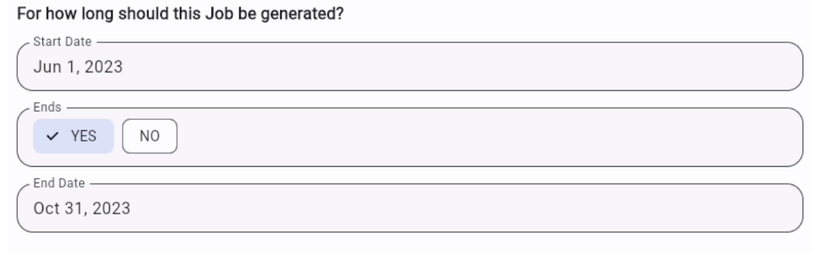
Choose the time frame for which you'd like to create the Recurring Job.
Example: swimming pool cleanings should be done during the summer period so you can choose start date: June 1st, end date: October 31st.
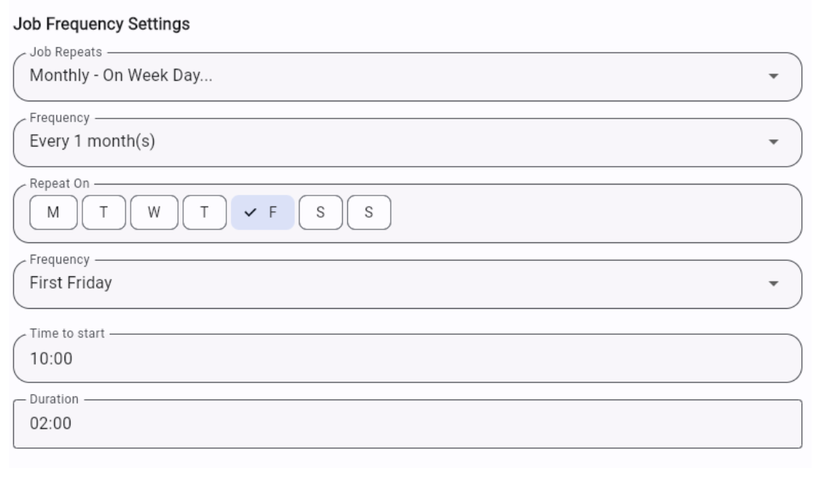
Choose the frequency of the Job
This can be daily, weekly or monthly > Moreover, you can choose to schedule it every "X" (1,2,3, etc) days/weeks/months.
If monthly: it can be on a specific day OR week of the month
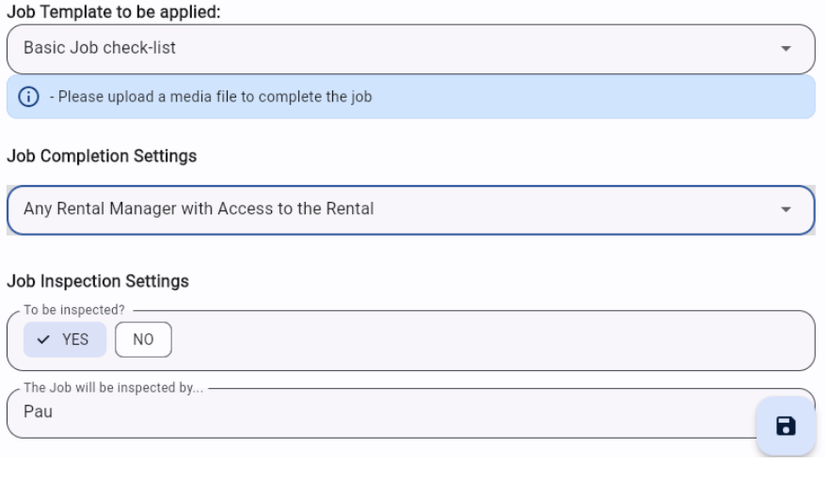
Choose the Job Template to be applied. Learn more on Job Templates here.
Choose WHO needs to do the Job
Tip! Opt to assign it to a Team Member Role instead of 1 Team Member. Example: Office Cleanings that need to be done by any of the Cleaning Staff; it does not matter whom.
Optional: Choose an Inspector for the Job
Save by clicking on the small diskette on the lower right side of your screen
Done! You have set up your Recurring Job.
Now sit back and relax and let the team take care of it.
Notes:
When you delete the Recurring Job, only future uncompleted Jobs will be deleted. All other Jobs will remain.
When you edit the Recurring Job, only future uncompleted Jobs will be edited. All other Jobs will remain unchanged.
Tip: for Recurring Jobs that do not need a detailed checklist (Job Template), you can create a short/blank Template and save it for these cases.